OK - I have experimented offline on three types, an HP Laptop, an ASUS gaming laptop and a Lenovo.
RESULTS:Each GPU provider and Corporate provider (HP, DELL, IBM etc) - Has some kind of partnership with Microsoft which means basically that Microsoft let them screw around with some of their code in areas that only affect user experience. This also includes Radeon/ATI and nVidia and also includes if you have an IBM onboard GPU.
How this affects Winstep users:
I provided a standard normal kind of scaling image below. Windows basically detects the resolution in display properties that a user selected and correspondingly recommends a rescaling percentage as you can see.
Attachment:
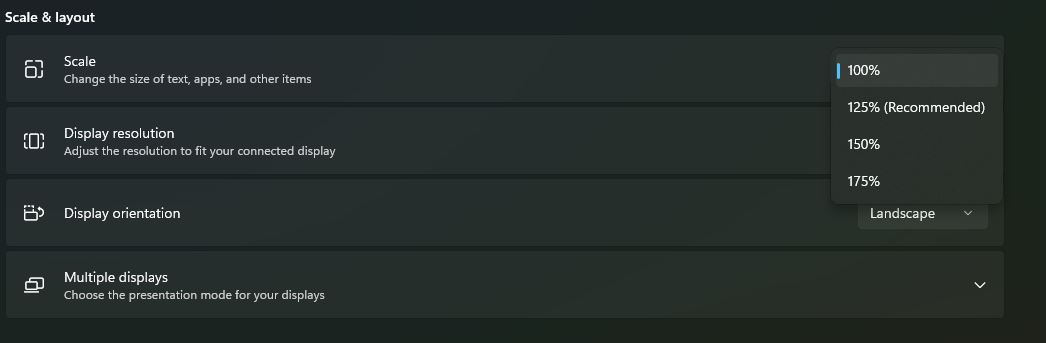 Windows scaling.jpg [ 25.14 KiB | Viewed 17550 times ]
This only gets really bad if your laptop has a super high end GPU that can do 4K and over 3200 resolution because it recommends to scale to 250%.
Keep this in mind: - Most skinners do their menus in pixels that do not exceed 500. I am not saying all, just most. I have viewed enough varieties over more than 10 years to know that many do not go above 300-400 pixels wide.
When scaled to 250%, 300 pixels is 300 pixels is 300 pixels. It will still be 300 pixels and many skinners design at 1920x1080 not in the 3000+ resolutions.
Any themes that rely on absolute positioning "might" look weird and in English slang "Skewiff"when scaled above 100% or the default non-windows altered resolution - meaning unaligned and just not right.
WORKAROUND:Fortunately, Winstep provides not just the DPI scaling, but Windows has one feature they did not let any of them touch - CTRL+center scroll mouse-button desktop resizing. If it goes "Skewiff", consider the following:
1. If your laptop is primarily for Gaming then you will want high resolutions and probably do not use Winstep for much so do not do the below. Keep gaming. You probably shouldn't have Winstep on if you need all your resources for gaming anyway. Yo ucan always simply rescale the resolution for each purpose easily enough anyway

2. Ctrl+Mouse scroll enables you to resize your icons and desktop view so do not do the recommended setting - ALWAYS do 100% no more or less and Winstep will always look right. With CTRL+Mousescroll icons and text sizes on your desktop will always be tailored how you like it.
3. Modules in Winstep scale beautifully so they can be as large or small as you like.
LAST - Always do one thing or one change at a time. If you ever find you had to do several things to get something working right and you do them all at once, you will never know what you did that made it work. Conversely, or what you might need to reverse because something stopped working.
Cheers


 Posted: Sun Feb 01, 2026 4:12 pm